Fritzbox as NAS: turn your router into network storage
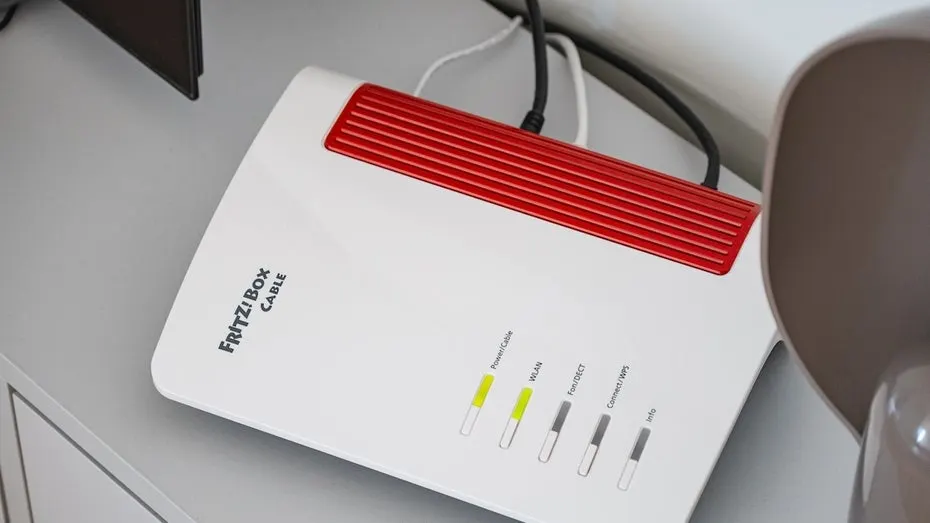
The USB port on your Fritzbox can turn the router into a home NAS. There are two ways to set it up, and they can't run at the same time.
 SUMO· the number puzzle
 Dialo· learn languages by speaking
 ediviewer· read EDI files like documents
 giftdetect· the right gift in minutes
The USB port on your Fritzbox is probably doing nothing. Plug in a stick or an external drive and the router can double as a Fritzbox NAS, a network drive that other devices at home can reach.
There are two ways to do it, and they exclude each other. If the USB remote connection is switched on, the network storage stops working.
Option 1: USB remote connection
This is the quicker route, but it only links the router to one or more Windows PCs (Windows 7 or newer). Which drives work depends on your model, so check the manual. In the Fritzbox interface:
- Open "fritz.box" or the factory IP "192.168.178.1".
- Click "Heimnetz" in the left sidebar, then "USB / Speicher".
- Open the "USB-Einstellungen" tab.
- At the bottom, tick "USB-Fernanschluss aktiv".
Then prepare each PC:
- In "USB-Einstellungen", use the download button for "AVM Fritzbox USB-Fernanschluss".
- Double-click the file to install it.
- Click the small USB icon in the Windows system tray.
- Enter your Fritzbox password, plus a username if your login uses one. Otherwise leave that field empty.
- Choose "Aktualisieren", then right-click the connected stick.
Windows then shows the drive as if it were plugged into the PC. Repeat this on any other Windows machine.
Option 2: Fritzbox NAS for every device
This variant also works with phones, tablets and macOS. Switch off the USB remote connection first. NAS access needs a user with a password.
- Open "fritz.box" or "192.168.178.1".
- Go to "System", then "Fritzbox-Benutzer".
- Edit an existing user and tick "Zugang zu NAS-Inhalten" under "Berechtigungen", or create a separate account with "Benutzer hinzufügen".
- Choose full access or read-only. With "Individuelle Einstellungen" and "Zugriffsberechtigung einstellen" you can release single folders and keep the rest closed.
- Go to "Heimnetz", "USB / Speicher", then the "Heimnetzfreigabe" tab.
- Select "Zugriff auf Netzlaufwerk (SMB)", give the storage a name, check the user list and click "Übernehmen".
How do you reach the Fritzbox storage?
In a browser, use "fritz.nas". On phones and tablets, use the MyFritz app. On a Windows PC:
- Open File Explorer and type "\fritz.box" in the address bar.
- Enter the login of the user with storage access and tick "Anmeldedaten speichern".
- Right-click the folder you want and choose "Netzlaufwerk verbinden".
Apps worth a look
SUMO: the number puzzleTap the right tiles, add them up, hit the target. Easy to learn, hard to master. Free, for all ages.
Dialo: learn languages by speakingTalk to an AI conversation partner; every sentence comes back corrected and explained in your language. 9 languages, A1 to C2.
ediviewer: read EDI files like documentsOpen EDIFACT and X12 messages, see every segment explained, convert to JSON/XML, export PDF and Excel. Runs locally, no upload.
giftdetect: the right gift in minutesPick who it is for, the occasion and their personality. The search engine reads product descriptions from local shops and ranks what fits. Free, no sign-up.
More from this day
See all →
GPT-6.2 in ChatGPT now burns through your limits up to 40% faster
Phone not charging? Dirt in the charging port is often to blame

Earth's axis shifted 80 cm because we pumped out groundwater