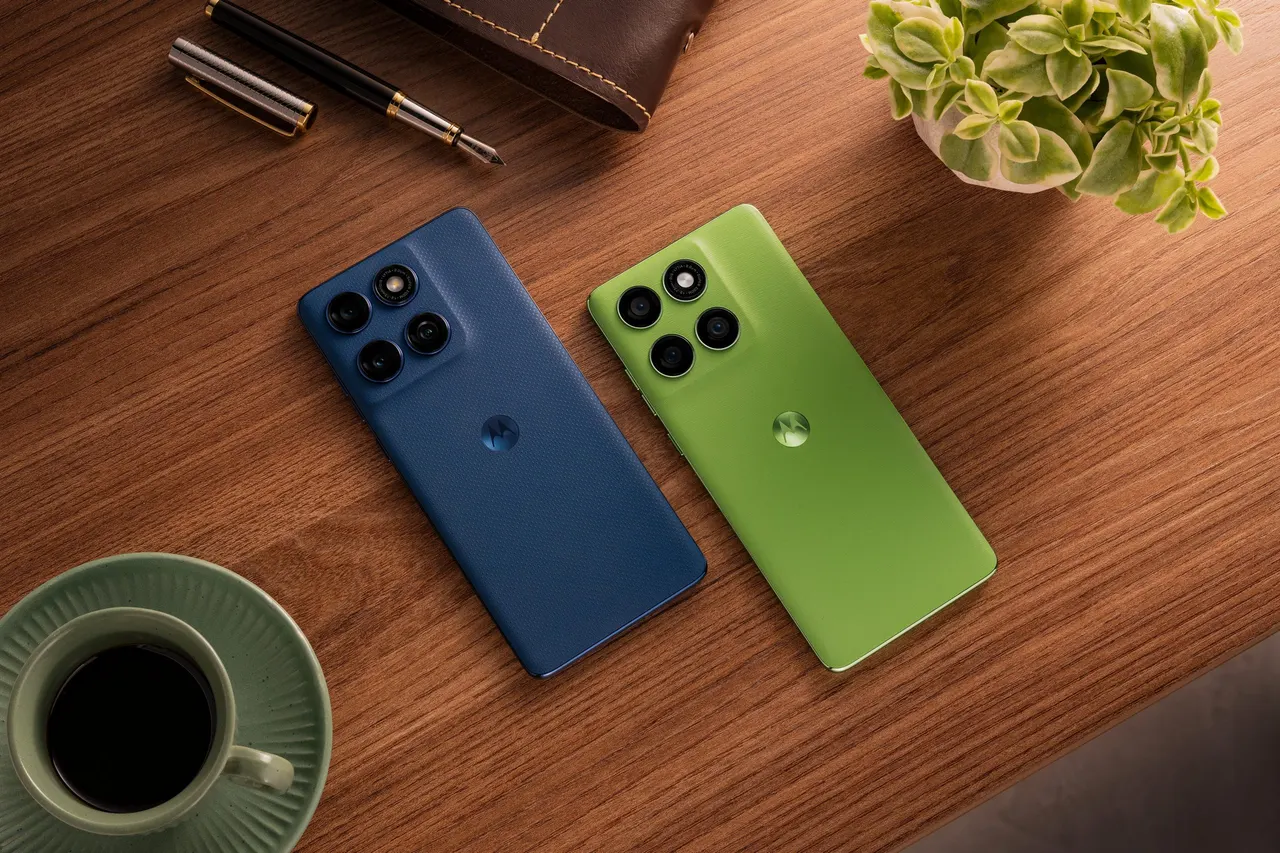
Samsung Galaxy phone buttons: extra shortcuts you may have missed
Your Samsung Galaxy can be controlled in more ways than the buttons on its frame. A few settings and the free Good Lock modules add shortcuts and more.

 SUMO· the number puzzle
 Dialo· learn languages by speaking
 ediviewer· read EDI files like documents
 giftdetect· the right gift in minutes
Your Samsung Galaxy phone has more buttons than the ones you can see. Some of them aren't on the casing at all, and a few can make everyday use noticeably quicker.
Samsung's Galaxy phones offer a wider set of controls than most owners notice at first glance. The physical keys on the side are only the start. A handful of settings let you add further shortcuts, and they can also make taking photos easier.
What is Good Lock on a Samsung Galaxy?
Good Lock is a set of free modules from Samsung that lets you customise how the phone behaves. Using them, you can add more shortcuts and even expand the navigation bar, the strip at the bottom of the screen with the back and home controls.
How to find the hidden buttons on a Samsung phone
The approach has two parts. First, look through the phone's built-in settings for the extra shortcuts and the options that make photography simpler. Second, install the Good Lock modules for deeper changes, such as a more capable navigation bar.
Not every tweak will matter to everyone. But some of them, as the original guide points out, can really speed up how you use the phone day to day, so they are worth a few minutes of poking around in the menus.
The exact menu names and available options can differ by model and software version, so what you see on your own Galaxy may vary slightly.
Apps worth a look
SUMO: the number puzzleTap the right tiles, add them up, hit the target. Easy to learn, hard to master. Free, for all ages.
Dialo: learn languages by speakingTalk to an AI conversation partner; every sentence comes back corrected and explained in your language. 9 languages, A1 to C2.
ediviewer: read EDI files like documentsOpen EDIFACT and X12 messages, see every segment explained, convert to JSON/XML, export PDF and Excel. Runs locally, no upload.
giftdetect: the right gift in minutesPick who it is for, the occasion and their personality. The search engine reads product descriptions from local shops and ranks what fits. Free, no sign-up.
More from this day
See all →
Welopoʻai: a triple star system 28 light-years away that shouldn't exist
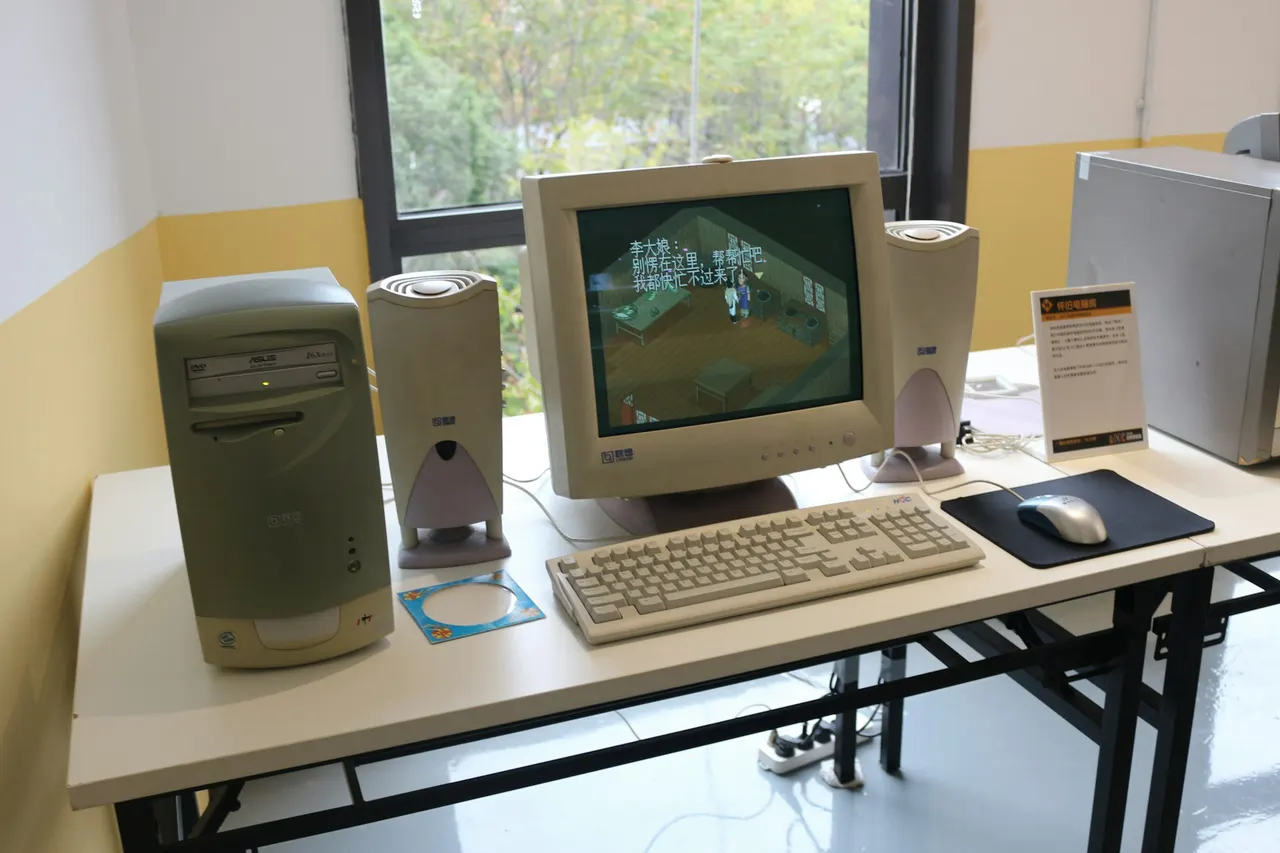
Oldest program running on Windows 11 dates back to 1992

Inkling 2 Mini: a 26B open AI model that runs on a laptop

Nvidia GeForce 621.35 fixes the driver bug writing 30 GB an hour to SSDs
More in: Mobile
See all →
Android sideloading gets harder from January 2027: what changes
Link to Windows 'Extend display' could turn Android into a PC monitor
Google Assistant shuts down on Home speakers on August 2, 2027