MacBook Globe key: what it does besides emoji and window tiling
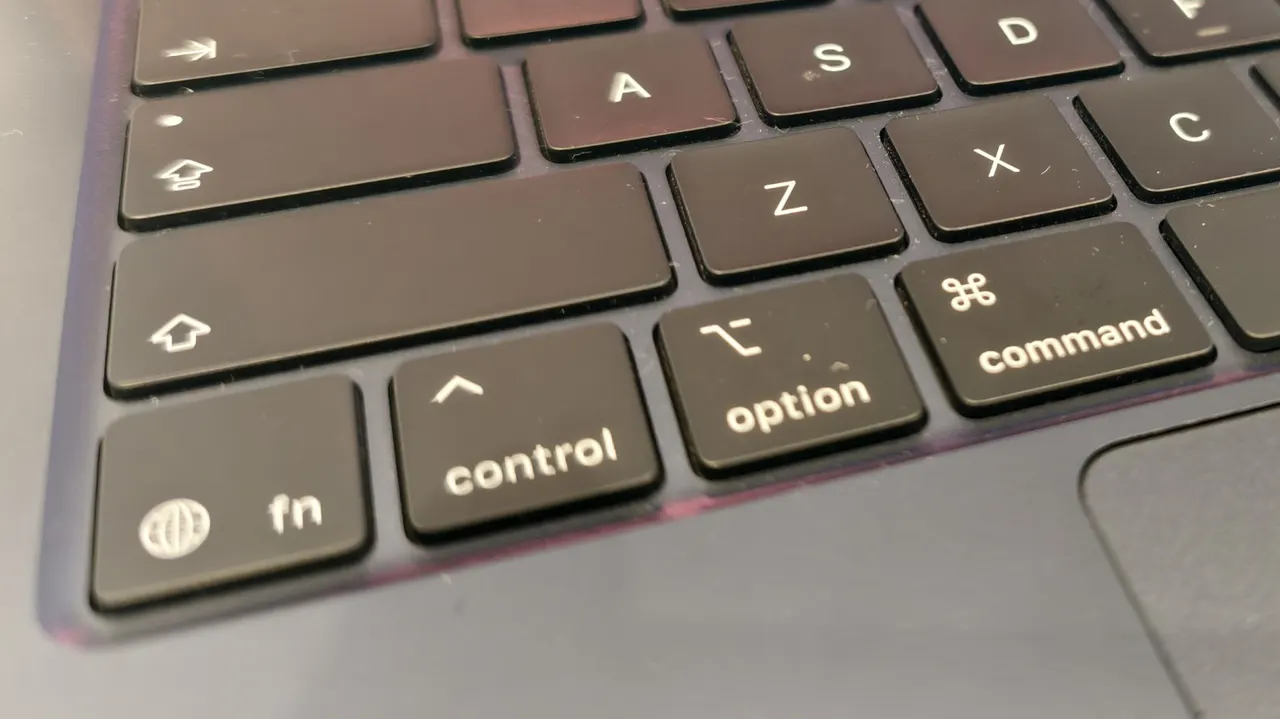
That little globe on your MacBook keyboard is also the Fn key. It opens emoji, starts dictation and snaps windows into place.
 SUMO· the number puzzle
 Dialo· learn languages by speaking
 ediviewer· read EDI files like documents
 giftdetect· the right gift in minutes
The Globe key on a MacBook keyboard does a lot more than most people ask of it. It doubles as the Function (Fn) key, which is why it carries both a globe icon and the letters "Fn." You won't find it on most third-party keyboards, but it sits on MacBooks and other Apple keyboards.
What does the Globe key do on a MacBook?
- Hold Globe/Fn while pressing an F key on the top row to override that key's default job, such as brightness, volume or Spotlight search.
- If you live in the F keys, open Settings > Keyboard and turn on Use F1, F2, etc. keys as standard function keys. After that, you press Globe/Fn to get brightness and volume.
- Pair it with a letter: Fn + E opens the Emoji and Symbols viewer, Fn + D starts or stops voice dictation, and Fn + A moves keyboard focus to the Dock.
- Use it for page navigation: Globe + Delete is a forward delete, Globe + up or down arrow scrolls a full page, and Globe + left or right arrow jumps to the start or end of a document.
- Change what a single tap does in Settings > Keyboard > Press Globe key to. The options are Change Input Source, Show Emoji & Symbols, Start Dictation or Do Nothing. If you have several language keyboards enabled, the default tap switches between them.
- Want it to act like another key? Go to System Settings > Keyboard > Keyboard Shortcuts > Modifier Keys and set it to behave like Control, Option, Command, Escape or No Action.
How do you tile windows with the Globe key?
This is where the key earns its place, especially on a smaller screen with several apps open.
- Globe + Control + arrow keys: snap the active window to the top, left, bottom or right of the screen.
- Globe + Control + Shift + arrow keys: tile the active window to one half and put the second most recently used window in the other half.
- Globe + Control + Option + Shift + arrow key: arrange three windows, with one taking half the space.
- Globe + Control + F: fill the desktop with the active window without entering full-screen mode.
- Globe + Control + C: center the window. Use R instead of C to restore its previous size.
A few desktop shortcuts round it out. Globe + F toggles full screen, Globe + H moves open windows aside, and Globe + M sends keyboard focus to the menu bar so you can move through menus with the arrow keys. Globe + Control + F8 focuses the status icons on the right of the menu bar, and Globe + Shift + A opens or closes the App Browser.
Apps worth a look
SUMO: the number puzzleTap the right tiles, add them up, hit the target. Easy to learn, hard to master. Free, for all ages.
Dialo: learn languages by speakingTalk to an AI conversation partner; every sentence comes back corrected and explained in your language. 9 languages, A1 to C2.
ediviewer: read EDI files like documentsOpen EDIFACT and X12 messages, see every segment explained, convert to JSON/XML, export PDF and Excel. Runs locally, no upload.
giftdetect: the right gift in minutesPick who it is for, the occasion and their personality. The search engine reads product descriptions from local shops and ranks what fits. Free, no sign-up.
More from this day
See all →
Samsung Galaxy display settings that unlock 120Hz and full resolution

iOS 27 automatic subtitles: how to turn them off on iPhone

Alcohol wipes on a laptop screen: what five makers say

Samsung SmartTag3 range: 200 feet up close, 900 million phones beyond
More in: Software
See all →
unkernel runs a real Linux 7.3 kernel in your browser tab
Free Microsoft app for tidying up Windows 11 is a hidden gem

Life without Google and Microsoft: can a PC run on European software?