iOS 27 automatic subtitles: how to turn them off on iPhone
iOS 27 now puts captions on your iPhone videos when you mute the phone or rewind. Three switches in Accessibility settings stop it for good.
 SUMO· the number puzzle
 Dialo· learn languages by speaking
 ediviewer· read EDI files like documents
 giftdetect· the right gift in minutes
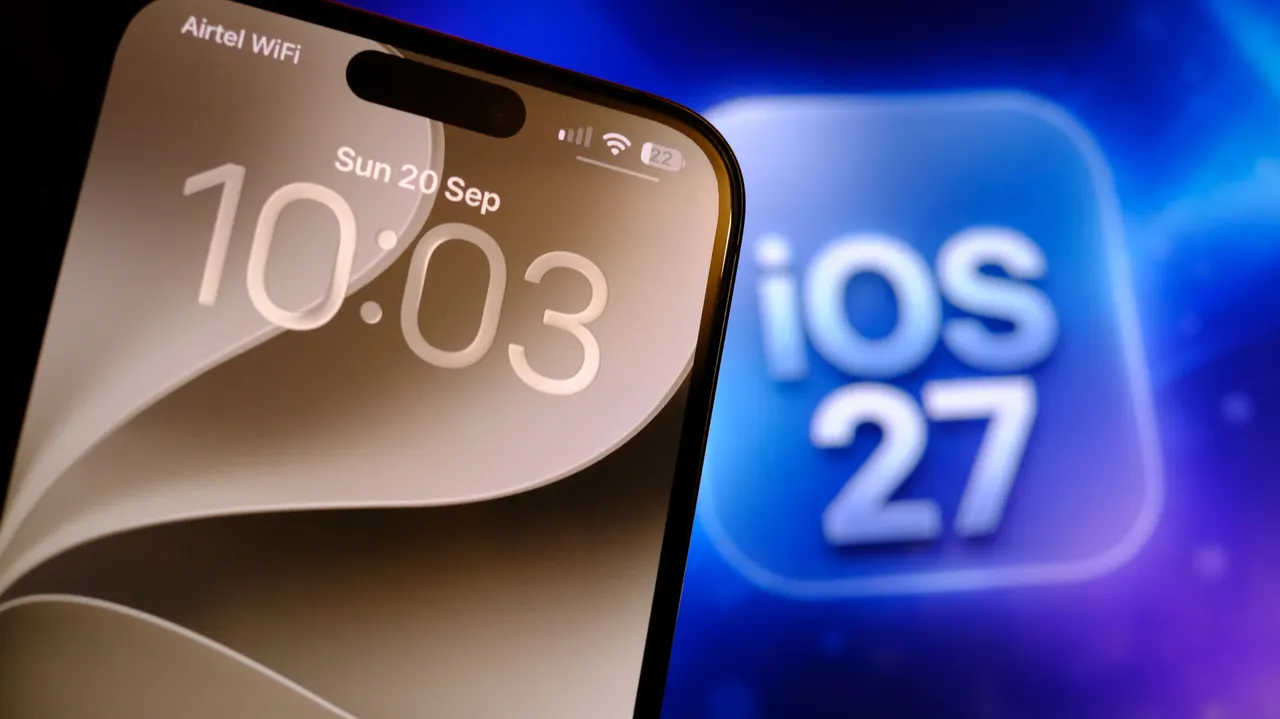
iOS 27 adds subtitles to your videos without being asked, and if you never wanted them, the novelty wears off fast. On the iPhone 15 Pro and later, text now appears along the bottom of clips in Apple's video player when certain conditions are met. It can kick in when the phone is muted, when you rewind, or when the video's language doesn't match your iPhone's preferred language.
This is separate from the closed captions that come with some videos, which have always been optional. The new part is the phone deciding for you. It feels especially odd on personal videos or random clips from friends and relatives.
How to turn off automatic subtitles on one video
- Tap the video to show the playback controls.
- Open More Controls.
- Select Subtitles.
- Tap Off.
The catch: the subtitles can come back on the next video.
How to turn off iOS 27 subtitles for good
- Open the Settings app.
- Go to Accessibility > Subtitles & Captioning > Automatic Subtitles.
- Turn off When Languages Don't Match to stop captions whenever your iPhone detects a language other than your preferred one.
- Turn off Show When Muted to stop captions appearing when the phone is muted.
- Turn off Show on Skip Back to stop captions popping up when you rewind.
Leave any one of the three on and captions will still show under that condition. These toggles apply to videos in supported apps and Apple's video player. Text embedded in a video isn't affected, and apps with their own caption settings can still show their captions. It's worth checking the three settings again after an update, in case any of them has been switched back on.
What if the subtitles won't turn off?
Check the app's own caption controls first. You can also close the app and reopen it, which may make the settings take effect. Apps that don't support these settings may need captions turned off inside the app itself, and many streaming apps and websites generate their own captions with a separate CC or subtitles button.
You don't have to switch everything off. If you often watch where you can't turn the sound up, leave Show When Muted on by itself. It won't trigger captions when your volume is up.
Apps worth a look
SUMO: the number puzzleTap the right tiles, add them up, hit the target. Easy to learn, hard to master. Free, for all ages.
Dialo: learn languages by speakingTalk to an AI conversation partner; every sentence comes back corrected and explained in your language. 9 languages, A1 to C2.
ediviewer: read EDI files like documentsOpen EDIFACT and X12 messages, see every segment explained, convert to JSON/XML, export PDF and Excel. Runs locally, no upload.
giftdetect: the right gift in minutesPick who it is for, the occasion and their personality. The search engine reads product descriptions from local shops and ranks what fits. Free, no sign-up.
More from this day
See all →
MacBook Globe key: what it does besides emoji and window tiling

Alcohol wipes on a laptop screen: what five makers say

Samsung SmartTag3 range: 200 feet up close, 900 million phones beyond

Tether stakeholder Bezrodnykh is a former Kaspersky Lab executive
More in: Mobile
See all →
WhatsApp travel eSIM: buy data abroad without leaving the app
Rebel Phone for Kids: TCL's phone with no TikTok or Instagram
Galaxy S25 Ultra US import ban: Maxell patent ruling explained