Samsung Galaxy display settings that unlock 120Hz and full resolution
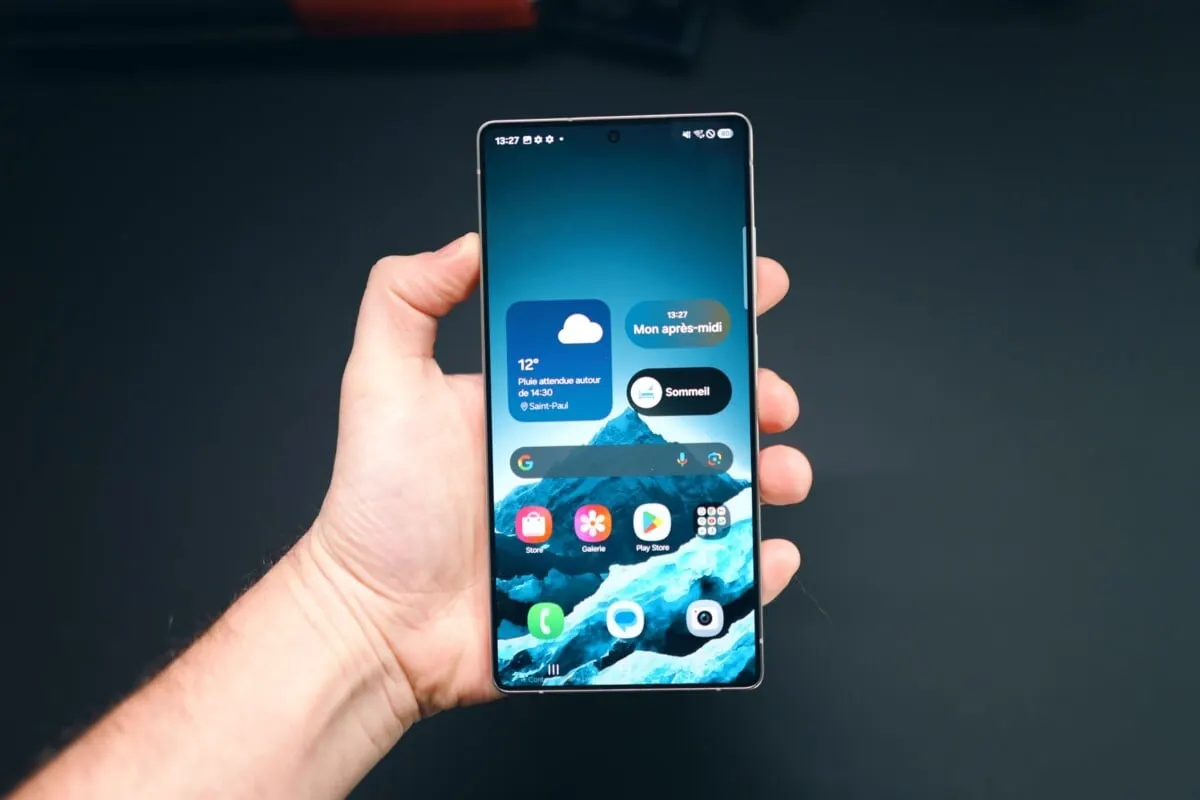
Your Galaxy flagship probably runs at 1080p and half its refresh rate. A few menu changes in One UI fix that, and add extra brightness, extra dim and Screen Curtain.
 SUMO· the number puzzle
 Dialo· learn languages by speaking
 ediviewer· read EDI files like documents
 giftdetect· the right gift in minutes
Samsung builds some of the best screens in the world and sells them to its rivals, yet a Galaxy flagship such as the S26+, S26 Ultra or a Fold can leave the factory set to 1080p. The refresh rate can reach 120Hz, but it ships at half that. The Samsung display settings to change this are in One UI, they just aren't advertised.
The steps below follow the order of the settings in One UI. They were tested on a Galaxy S23 Ultra, S25 Ultra and S26 Ultra running One UI 9, plus Galaxy Tab S9 and Tab S10 Ultra tablets on One UI 8.5.
How to unlock 120Hz and full resolution on a Galaxy
- Swipe down from the top right corner of the display and tap the gear icon to open Settings.
- Tap Display, then Motion smoothness, choose Adaptive and tap Apply.
- Go back to Display, tap Screen resolution, pick the rightmost option (the highest your device offers) and tap Apply.
- Still in Display, open Screen mode. Samsung defaults to Vivid, which boosts sharpness and saturation. Choose Natural for truer colors.
- If you stay on Vivid, newer Galaxy devices show a white balance slider for warmer (redder, yellower) or cooler (bluer) tones. Tap Advanced settings for separate red, green and blue sliders and a Vividness slider.
- For a brighter screen, pull down the Quick Panel, hold the brightness slider and turn off Adaptive brightness. An Extra brightness toggle then appears and pushes the screen past the slider's maximum.
- For a darker screen, open Settings, then Accessibility, then Vision enhancements, and switch on Extra dim. Turn on the Extra dim shortcut to add a Quick Panel toggle for reading in bed.
- To control screen timing, install the Good Lock app from the Galaxy Store or Google Play, then add its Display Assistant module. Two new Quick Panel toggles appear: Keep screen on and Screen Curtain.
What do Keep screen on and Screen Curtain do?
Keep screen on, shown as a downward-facing lamp icon, holds the display awake for half an hour, then asks if you want another half hour. Screen Curtain turns the screen off while the phone keeps working as if it were on, which helps during a long task such as exporting a 4K video.
Limits to know
Higher resolution and the higher refresh rate both use more battery, so decide whether that trade is worth it. Some features may not work on devices older than the Galaxy S23 Ultra, which was the oldest model tested.
Apps worth a look
SUMO: the number puzzleTap the right tiles, add them up, hit the target. Easy to learn, hard to master. Free, for all ages.
Dialo: learn languages by speakingTalk to an AI conversation partner; every sentence comes back corrected and explained in your language. 9 languages, A1 to C2.
ediviewer: read EDI files like documentsOpen EDIFACT and X12 messages, see every segment explained, convert to JSON/XML, export PDF and Excel. Runs locally, no upload.
giftdetect: the right gift in minutesPick who it is for, the occasion and their personality. The search engine reads product descriptions from local shops and ranks what fits. Free, no sign-up.