Gemini privacy settings: what to switch off and where to find it
Anything you type into Gemini can be used to train Google's AI and may be read by humans. A few toggles limit that, and they take about a minute each.

 SUMO· the number puzzle
 Dialo· learn languages by speaking
 ediviewer· read EDI files like documents
 giftdetect· the right gift in minutes
If you use Android, Google Search or Google Docs, you are probably already talking to Gemini. The Gemini privacy settings are worth a look, because what you type into it can be used to train Google's AI and might be reviewed by humans.
You can't use Google's products without exposing some data to Gemini. But you can shrink what it knows about you. The simplest rule is to be careful about what you type into the chatbot, or skip Gemini when drafting in Google Docs. Beyond that, a handful of account settings do the work.
How to stop Gemini using your chats for training
Open the Gemini History settings in any browser where you're logged into Google. Uncheck "Chat content including text & attachments" and "Audio and Gemini Live videos & screenshares". That turns off content sharing.
You can also switch off chat history on the same page. The cost is that you can't pick up old chats later. The gain is that Google keeps your history internally for about two months, instead of three months or longer. One catch: deleting a chat does not delete a public link to it, and it won't erase chats sent by text message.
Next, check your connected apps. On the Gemini website, expand the sidebar, click Customize, then Connectors. Click the three dots beside any connector to disconnect it.
Can Gemini see through your camera or hear you?
Gemini can use your webcam, phone camera or smart home cameras, but only if you allow it. Features like Gemini Live and Google Nest rely on that access, so some may stop working if you revoke it.
On Android, go to Settings > Apps > Gemini (or Google) > Permissions > Camera and choose Don't allow. On iPhone and iPad, open Settings > Privacy & Security > Camera and toggle Gemini or the Google app off. In Chrome on a PC or Mac, visit gemini.google.com, click the sliders left of the address, pick Site settings and deny the camera.
The microphone is a bit different. Gemini doesn't eavesdrop, but your device does process audio to catch the "Hey Google" wake word. If someone says it by accident, Gemini starts listening. To block that, use the same paths with Microphone in place of Camera: Don't allow on Android, the Microphone toggle on iOS, and the Site settings drop-down in Chrome.
Apps worth a look
SUMO: the number puzzleTap the right tiles, add them up, hit the target. Easy to learn, hard to master. Free, for all ages.
Dialo: learn languages by speakingTalk to an AI conversation partner; every sentence comes back corrected and explained in your language. 9 languages, A1 to C2.
ediviewer: read EDI files like documentsOpen EDIFACT and X12 messages, see every segment explained, convert to JSON/XML, export PDF and Excel. Runs locally, no upload.
giftdetect: the right gift in minutesPick who it is for, the occasion and their personality. The search engine reads product descriptions from local shops and ranks what fits. Free, no sign-up.
More from this day
See all →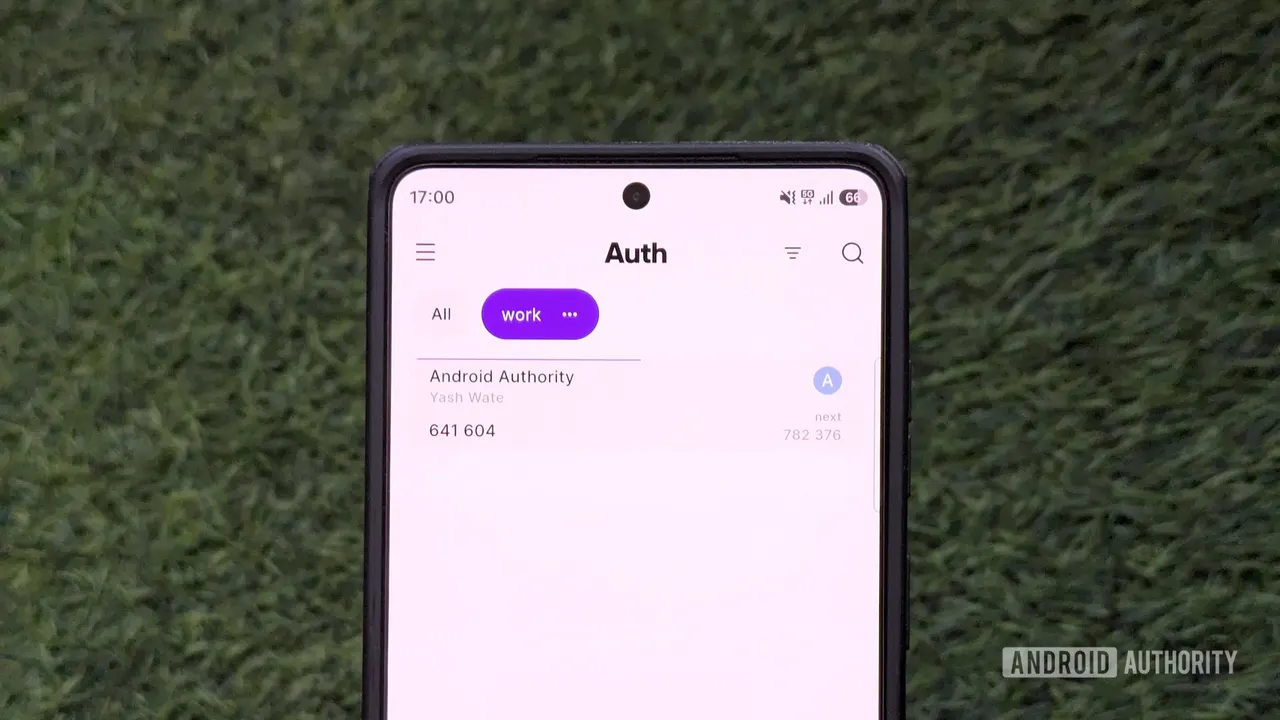
Ente Auth vs Google Authenticator: why one user switched
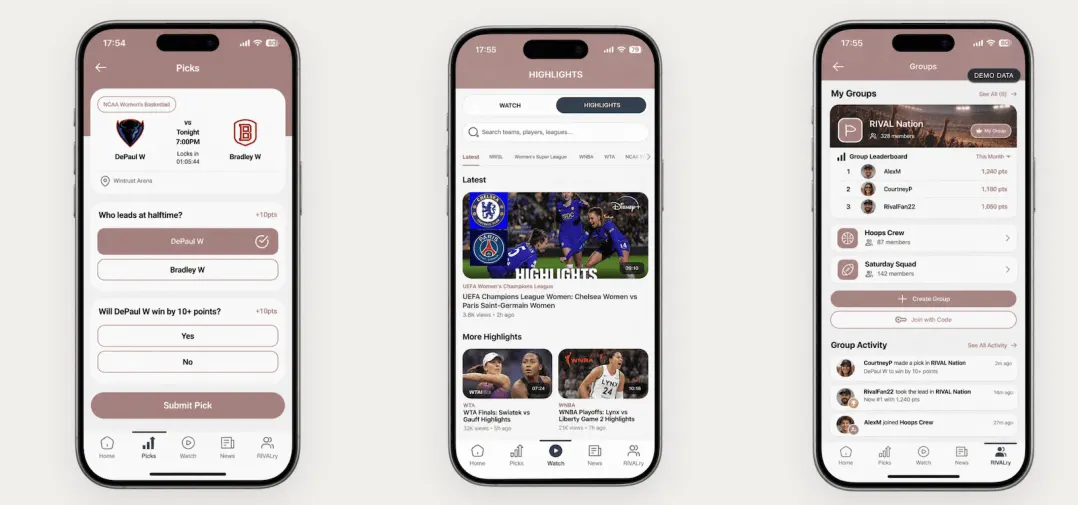
Rival app is a women's sports hub with picks but no betting
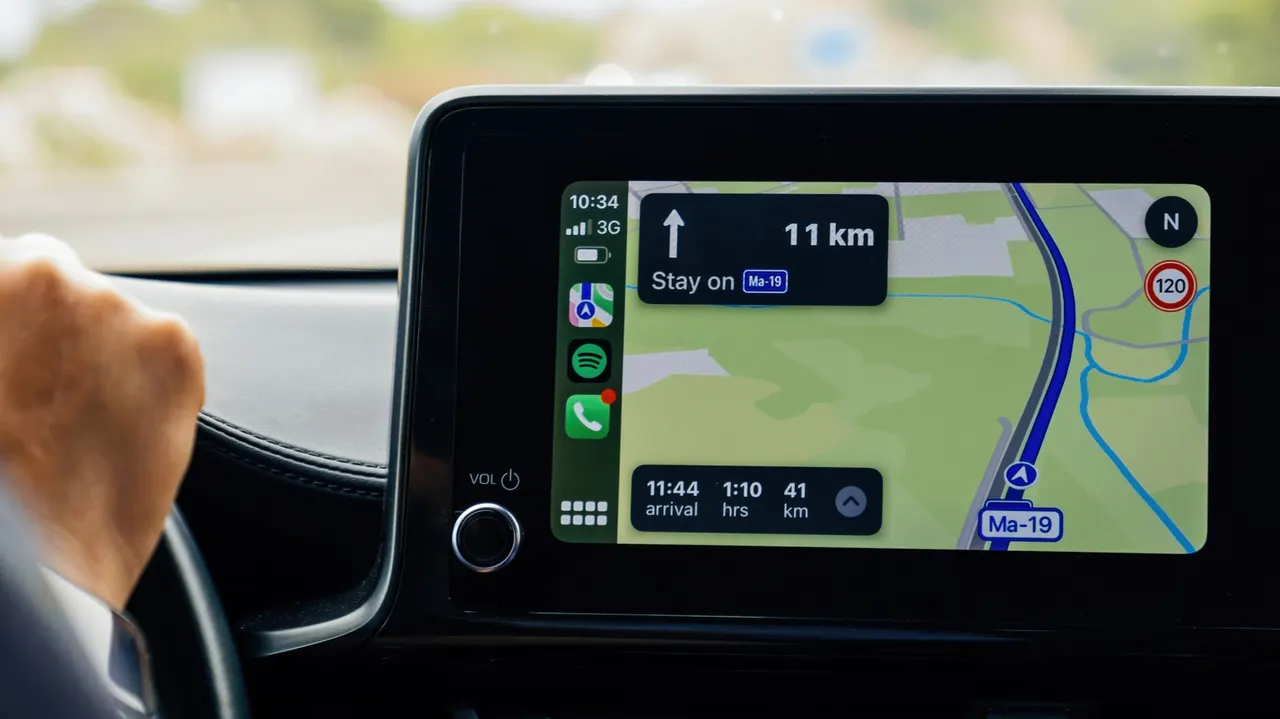
iOS 27 CarPlay bug: Google Maps and Waze banners cover the map

Apple subscription retention messages: why apps now push back
More in: Security
See all →
DWP cyber incident: UK pulls pensions services offline
Unknown device in your Google account? 5 steps to lock it down

Credit card skimming via WebRTC found at online shops on Black Friday