How to scan a barcode with your phone on Android or iPhone
Your phone can read a barcode in seconds and show what's in your food or what a product costs. Android has the easier route, but iPhones can do it too.
 SUMO· the number puzzle
 Dialo· learn languages by speaking
 ediviewer· read EDI files like documents
 giftdetect· the right gift in minutes
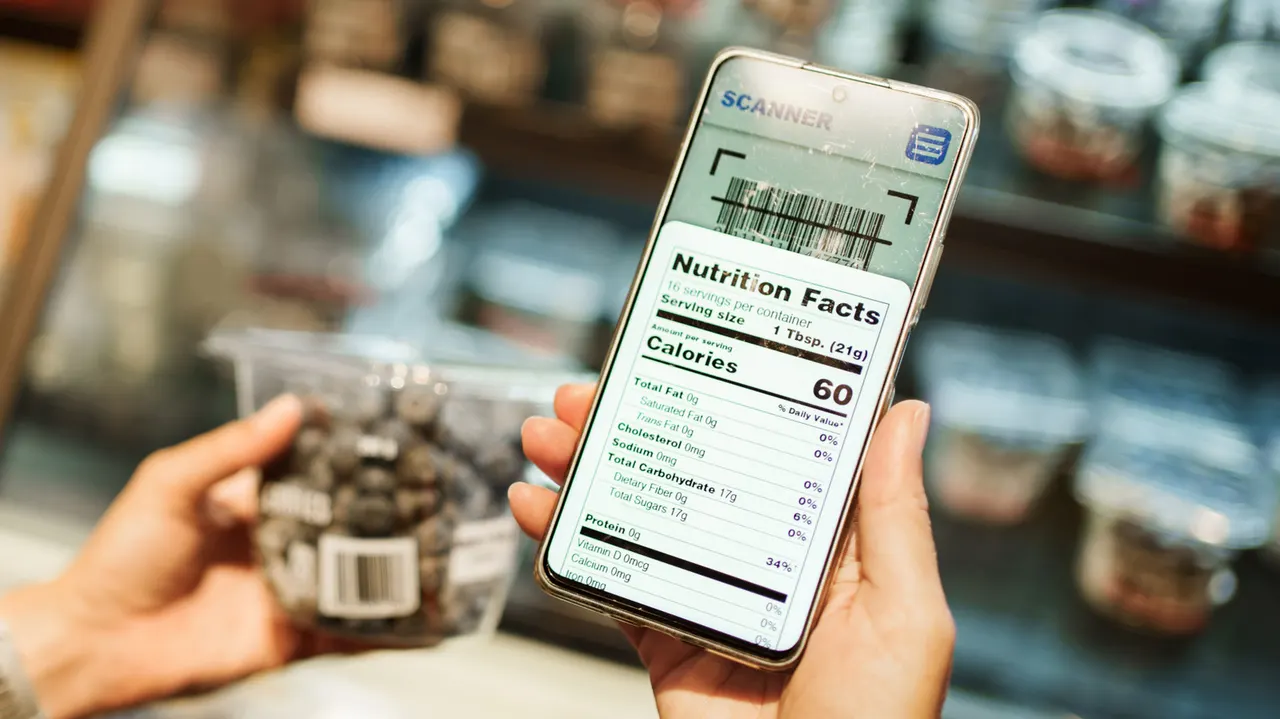
Scanning a barcode with your phone takes a few seconds, and it can tell you what is in your food or what a product costs. Barcodes are tied to databases, so the details are more dependable than an AI's best guess. Android has the edge, because Google Lens comes preinstalled on most devices. iPhones can manage it too, with one extra download.
How to scan a barcode on Android and iPhone
- On Android, open Google Lens. Barcode scanning is built in.
- On an iPhone, install the Google app from the App Store first. That's the extra trip.
- On either phone, tap the camera icon in Google Search to launch Lens.
- Hold the barcode in frame. A pop-up may appear. If it doesn't, press the shutter button.
- Read what Google returns, such as pricing.
IPhones with Apple Intelligence (the iPhone 15 Pro and later) have Visual Intelligence, which may give similar results. Apple doesn't explicitly promise it reads barcodes, though. It could be working from other clues, such as product art.
Which app is best for scanning food labels?
If nutrition is your main concern, a calorie-counting app like Cronometer or MacroFactor is the better pick. They pull from common databases and log calories, proteins, carbs and fats, plus vitamins and minerals. Be warned that some require a subscription, or push you toward one by locking features.
What to watch out for
There are plenty of free, generic barcode scanner apps on the App Store and Google Play. Read the reviews before you install one. Free apps can bury you in ads or sell your data to brokers.
Barcodes are also not QR codes. For a QR code you don't need Google at all, because the camera app on both iPhone and Android detects it and lets you tap the link.
If an item has no barcode, Lens and Visual Intelligence can still try. Treat the answer with suspicion. They run on Google Gemini and Apple Intelligence, which can hallucinate, and so can apps like ChatGPT. Even with a good scan, a store listing may not say everything, such as how to install the product, so you might need another search.
Apps worth a look
SUMO: the number puzzleTap the right tiles, add them up, hit the target. Easy to learn, hard to master. Free, for all ages.
Dialo: learn languages by speakingTalk to an AI conversation partner; every sentence comes back corrected and explained in your language. 9 languages, A1 to C2.
ediviewer: read EDI files like documentsOpen EDIFACT and X12 messages, see every segment explained, convert to JSON/XML, export PDF and Excel. Runs locally, no upload.
giftdetect: the right gift in minutesPick who it is for, the occasion and their personality. The search engine reads product descriptions from local shops and ranks what fits. Free, no sign-up.
More from this day
See all →
Atari Homebrew Awards cancelled because of AI-made games

Kanal 15 for Euro Truck Simulator 2: bot caught a driver's wrong team
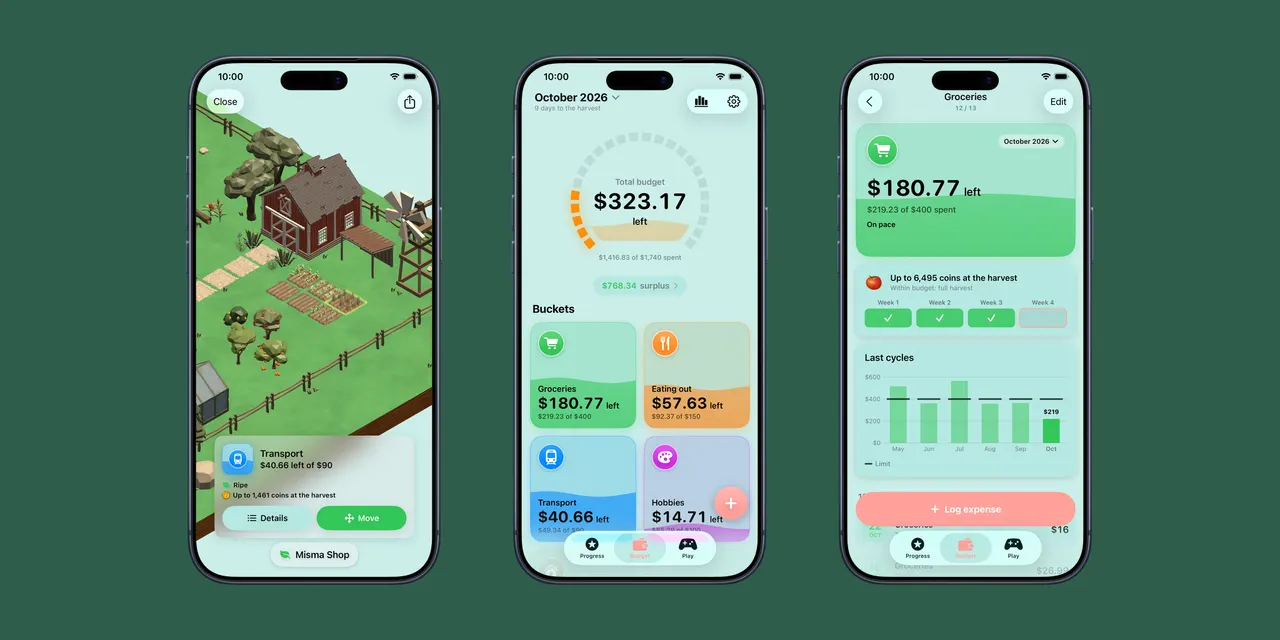
Misma savings app grows a virtual farm as you save, no streaks