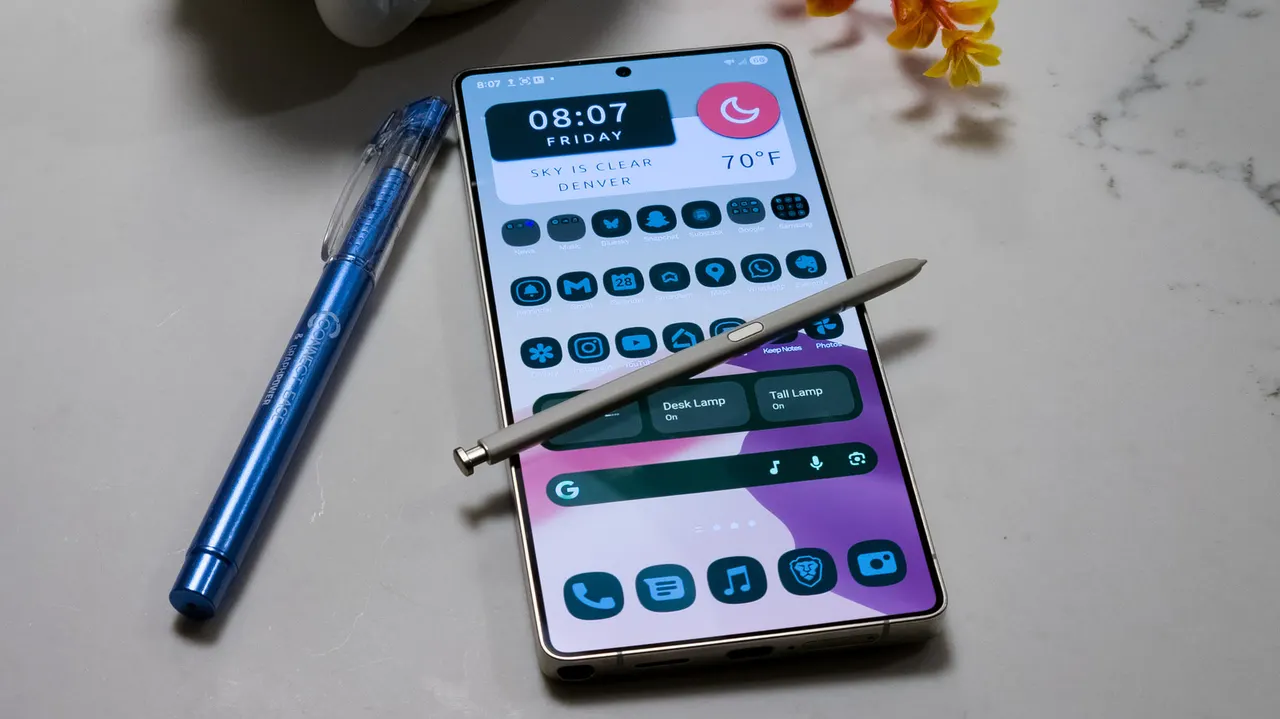
Which Android apps use your camera and mic? Check Privacy Dashboard
Android keeps a log of which apps used your camera and microphone, and when. A small green dot on screen shows live use as it happens.
 SUMO· the number puzzle
 Dialo· learn languages by speaking
 ediviewer· read EDI files like documents
 giftdetect· the right gift in minutes
If you have ever wondered which apps on your Android phone use the camera or microphone, the answer is already built into the settings. You just have to know where to look.
Phone privacy is no longer only about locking photos, messages and passwords. Some apps are allowed to reach the camera and microphone, and that raises a fair question: how much of your surroundings can they see or hear? Android has tools that let you check which apps used these sensors and at what time, and whether any of them have permissions they do not need.
How to see which apps use the camera and microphone on Android
The feature is called Privacy Dashboard, and it lives in the Security and Privacy settings. Open your phone's settings, go to Security and Privacy, then choose Privacy Dashboard. Tap Camera or Microphone, and you get a list of the apps that used each permission, with the time they accessed it during the period the system records.
How to stop apps from accessing the camera and microphone
Finding an app is only half the job. You can also take the permission away through the permission manager. Among the steps: tap Camera to review which apps are allowed to use it, then revoke the permission for any app that has no reason to use these components.
What is the green dot on an Android screen?
Modern Android phones show a privacy indicator whenever the camera or microphone is in use. It usually appears as a green dot at the top of the screen. Tap it and the phone tells you which app is using the camera or microphone at that moment, which helps you catch anything unexpected.
A permission is not proof of spying. An app with camera access is not necessarily watching you. But it is worth checking the permissions from time to time and making sure each one is used for something the app actually needs to do.
Apps worth a look
SUMO: the number puzzleTap the right tiles, add them up, hit the target. Easy to learn, hard to master. Free, for all ages.
Dialo: learn languages by speakingTalk to an AI conversation partner; every sentence comes back corrected and explained in your language. 9 languages, A1 to C2.
ediviewer: read EDI files like documentsOpen EDIFACT and X12 messages, see every segment explained, convert to JSON/XML, export PDF and Excel. Runs locally, no upload.
giftdetect: the right gift in minutesPick who it is for, the occasion and their personality. The search engine reads product descriptions from local shops and ranks what fits. Free, no sign-up.
More from this day
See all →



More in: Mobile
See all →
Naver's Thingsbook hits 1 million downloads without likes
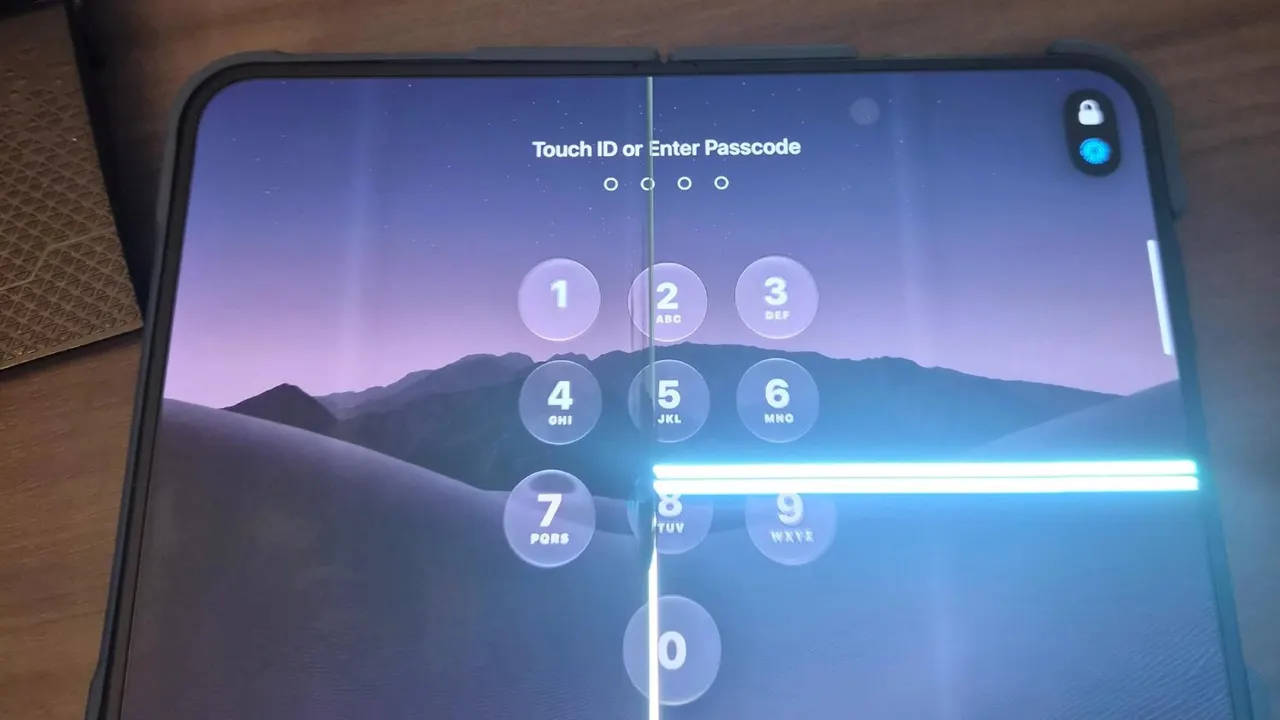
iPhone Duo cracked inner screen: Apple now repairs, not replaces

WhatsApp for iPhone is testing a navigation bar without text labels