Gmail not working on Android? Check these things first
If Gmail stops syncing or notifications vanish on your Android phone, the cause is usually short list of fixable things, and sometimes it's Google itself.
 SUMO· the number puzzle
 Dialo· learn languages by speaking
 ediviewer· read EDI files like documents
 giftdetect· the right gift in minutes
When Gmail not working on Android becomes your problem, it tends to ruin the whole day. Google says more than 3 billion people use the service, so you are in big company. The good news: the likely causes are few, and almost none need technical skill.
The usual suspects are an app you haven't updated in ages, a bad internet connection, sync settings that got switched off, or a corrupted cache (temporary files the app stores). Old builds can stop messages from syncing, kill notifications or freeze the app entirely. And sometimes it isn't you at all: Google's servers have outages too, and no amount of tinkering fixes that.
How to fix Gmail not working on Android
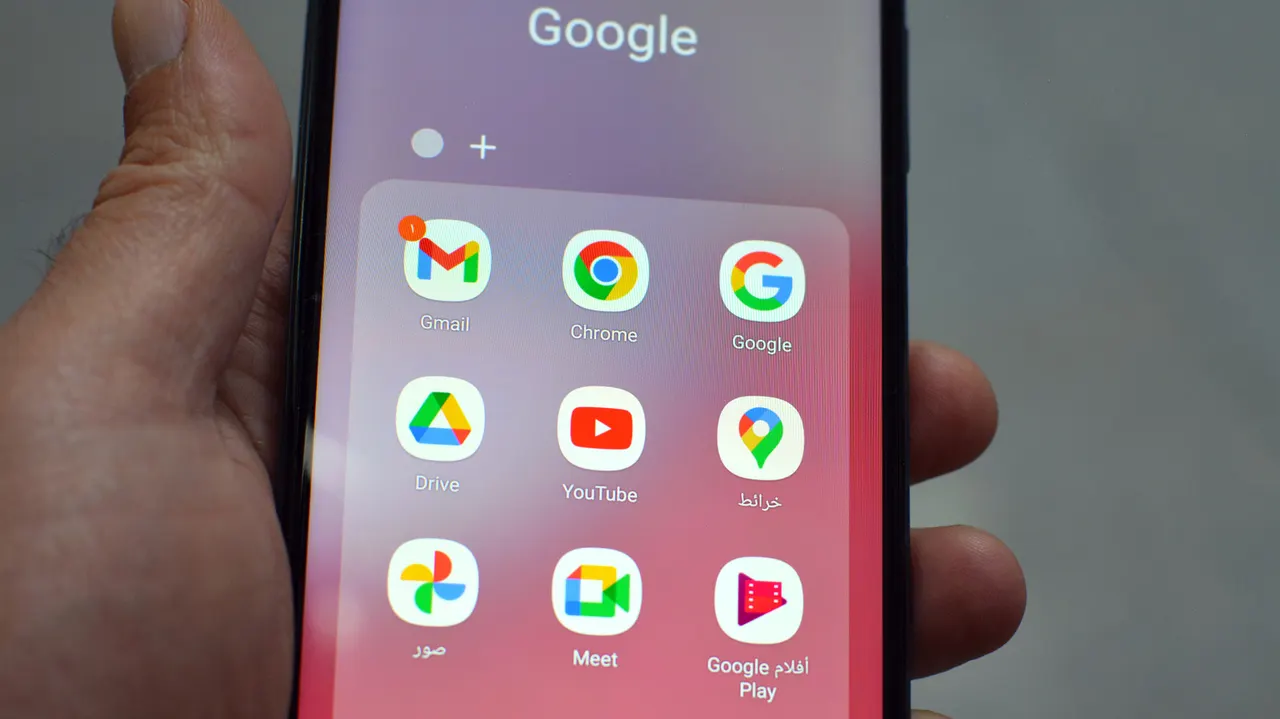
Start with the easy checks. In the Play Store, tap your profile icon, go to Manage apps & devices, open the Manage tab and find Gmail. Update it if an update is waiting. Then open a browser and load any website. On public Wi-Fi, your phone may look connected while the speed is shared among too many people, or a sign-in page may still need completing.
Next, check Google's Workspace Status Dashboard. An exclamation mark next to Gmail means a service disruption. A red X means a full outage.
Why won't Gmail sync new emails?
In Gmail, open the menu, go to Settings, pick your account, scroll to Data usage and make sure Sync Gmail is ticked. Then, in the phone's Settings, go to Accounts and backup > Manage accounts, tap your Google Account, choose Sync account and confirm Gmail is on. If you added a POP or IMAP account, check its incoming and outgoing server settings, since a wrong entry blocks syncing completely.
What if the cache or storage is the problem?
Go to Settings > Apps > Gmail > Storage and tap Clear cache. Your emails, drafts and account data stay untouched. Then tap Force Stop on the app info screen and relaunch Gmail. Also check that the phone isn't nearly full, because apps can fail to sync new data when storage runs out. Delete unused apps or photos already backed up to the cloud. Finally, restart the phone.
If nothing works, go back to the status dashboard. Google may have updated it while you were troubleshooting.
Apps worth a look
SUMO: the number puzzleTap the right tiles, add them up, hit the target. Easy to learn, hard to master. Free, for all ages.
Dialo: learn languages by speakingTalk to an AI conversation partner; every sentence comes back corrected and explained in your language. 9 languages, A1 to C2.
ediviewer: read EDI files like documentsOpen EDIFACT and X12 messages, see every segment explained, convert to JSON/XML, export PDF and Excel. Runs locally, no upload.
giftdetect: the right gift in minutesPick who it is for, the occasion and their personality. The search engine reads product descriptions from local shops and ranks what fits. Free, no sign-up.
More from this day
See all →
How to block spam texts on iPhone and Android
What Is Qwen? Alibaba's AI Models Now Span Phones to Agents

SANY Moon mining: a lunar diorama and a driverless 100-tonne truck