Quad9 stops working in France: how to check your DNS
Quad9 chose to leave France rather than block 58 sites. If you set it as your DNS and forgot, websites may stop loading. Here is how to check.

 SUMO· the number puzzle
 Dialo· learn languages by speaking
 ediviewer· read EDI files like documents
 giftdetect· the right gift in minutes
If you ever typed 9.9.9.9 into your router or phone and forgot about it, your internet may look broken today. Since Tuesday 24 November 2026 at 9 am, the free DNS resolver Quad9 no longer answers users in France.
The Swiss foundation announced the withdrawal on 22 October. A day earlier, a French court had ordered it, at the request of beIN Sports, to block 58 sites accused of streaming matches illegally. Quad9 decided to leave instead. It says it cannot know who is physically in France, and it refuses to block those sites for the whole world.
What is Quad9 and who is affected?
To open a website, your device first has to look up its address, a bit like finding a number in a phone book. That is the job of a DNS service. By default your internet provider does it, but some people prefer Quad9, which also blocks known dangerous sites.
If you never touched these settings, nothing changes for you. If Quad9 is your only DNS, your connection stays up but no site will load. Rival Cloudflare warns that these users will see their internet stop working without explanation.
How to check if you use Quad9
The quickest test is to open on.quad9.net. A big "Yes" means you go through Quad9. The test has limits: it shows "No" if Quad9 is only a backup server, and a VPN can skew the result. Repeat it on every device and browser.
Also look in your settings for 9.9.9.9, 149.112.112.112, 9.9.9.10, 9.9.9.11, 9.9.9.12, or the name dns.quad9.net in encrypted DNS options. Places to look: your router's admin page (DNS section), Windows network connection properties, Mac network details, Android's Private DNS, the iPhone Wi-Fi "i" menu (plus any Quad9 profile under VPN and device management), and the secure DNS option in Chrome or Edge.
You can also run dig +short txt proto.on.quad9.net on Mac or Linux, or Resolve-DnsName -Type txt proto.on.quad9.net in PowerShell. An answer containing "do53-udp", "do53-tcp", "dot" or "doh" means Quad9 is in use.
How to replace it
Simplest fix: remove the setting. Switch DNS back to automatic on your router, computer or iPhone, and your provider's service takes over again. On Android choose "Automatic" or "Off" under Private DNS. In your browser, turn off secure DNS or pick another provider. Delete any Quad9 profile on an iPhone or Mac.
Apps worth a look
SUMO: the number puzzleTap the right tiles, add them up, hit the target. Easy to learn, hard to master. Free, for all ages.
Dialo: learn languages by speakingTalk to an AI conversation partner; every sentence comes back corrected and explained in your language. 9 languages, A1 to C2.
ediviewer: read EDI files like documentsOpen EDIFACT and X12 messages, see every segment explained, convert to JSON/XML, export PDF and Excel. Runs locally, no upload.
giftdetect: the right gift in minutesPick who it is for, the occasion and their personality. The search engine reads product descriptions from local shops and ranks what fits. Free, no sign-up.
More from this day
See all →
Windows 11 on the iPhone Duo: a tinkerer's tiny fold-up laptop

X is testing an Undo button for accidental timeline refreshes

Dark patterns in India: 94% of 354 top platforms still use them

Grok Imagine lawsuit: Oregon and Virginia sue SpaceX over AI images
More in: Security
See all →
How to find and block unknown devices on your home Wi-Fi network

Card skimming scam hits French petrol stations and ATMs
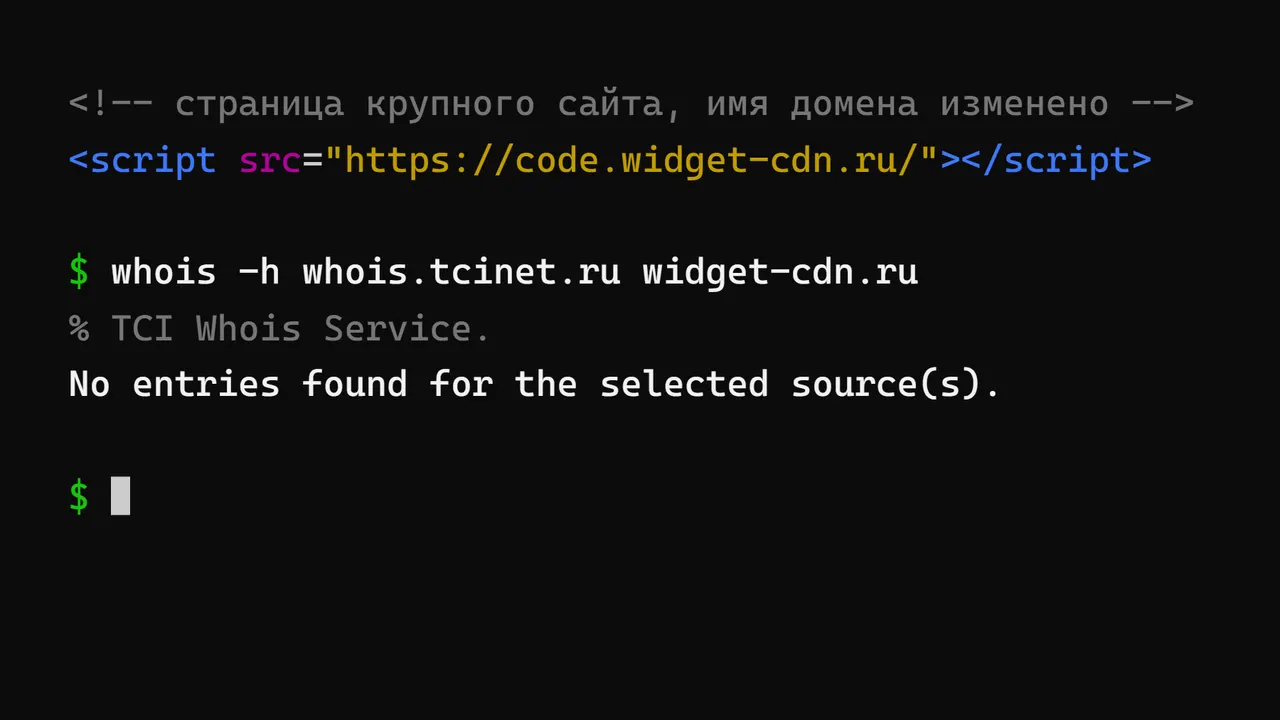
Russian website security audit: 1,000 sites, no hacking needed