Gemini Notebook presentations: make slides and export to PowerPoint
Gemini Notebook, the tool formerly known as NotebookLM, can turn your sources into a slide deck from one sentence, then export it as PDF or PowerPoint.
 SUMO· the number puzzle
 Dialo· learn languages by speaking
 ediviewer· read EDI files like documents
 giftdetect· the right gift in minutes
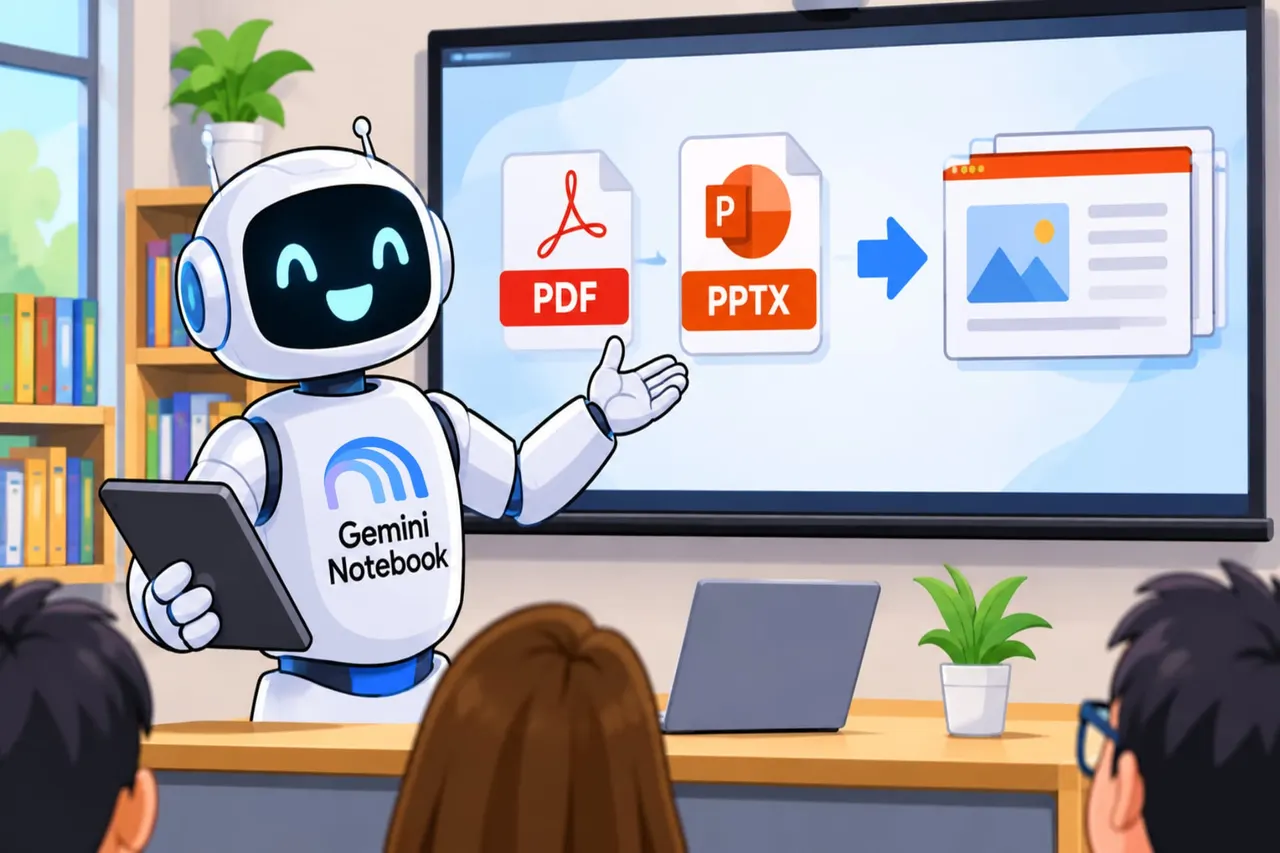
You can now build a slide deck with Gemini Notebook, the tool formerly called NotebookLM, by typing a single sentence. It then exports the result as a PDF or a PowerPoint file (PPTX).
Gemini Notebook works from sources you give it: notes, photos, scanned images, even books in PDF or ePub. If you have none, Google's AI can find some based on your topic. From there it can produce a podcast, a video, a report, a mind map, an infographic, flashcards or a presentation.
How to make a presentation with Gemini Notebook
The quick route: open or create a notebook, go to Studio and click Presentation. A menu lets you pick a detailed deck that summarises your sources, or "presenter slides" meant to accompany a talk. You also choose the language, short or default length, and which sources to use. Click Generate now and wait a few minutes.
For more control, write what you want in the field "Describe the presentation you want to create". The more precise you are, the less editing later. Also tick "Review slide outline", which shows you the structure before the AI builds the slides. For now, that review only exists in the web version.
There is also a newer route from the chat. An assistant walks you through the focus and visual style, and lets you review the outline before the final PowerPoint is made. A new button in Studio starts it, or you can just ask in the chat.
Can you edit the slides afterwards?
Yes. Generated decks appear at the bottom of Studio. Choose one and click Review, then ask for changes to text, design or look. Each request shows up as a pending change. You can also delete a slide through the More menu above it, or drag slides to reorder them.
When you are done, click "Generate revised set". It runs faster than the first generation, and Google recommends bundling several changes into one session.
The dropdown menu lets you download the deck as PDF or PPTX, open it in a new tab, or use Start presentation to show the slides on screen while you speak.
Apps worth a look
SUMO: the number puzzleTap the right tiles, add them up, hit the target. Easy to learn, hard to master. Free, for all ages.
Dialo: learn languages by speakingTalk to an AI conversation partner; every sentence comes back corrected and explained in your language. 9 languages, A1 to C2.
ediviewer: read EDI files like documentsOpen EDIFACT and X12 messages, see every segment explained, convert to JSON/XML, export PDF and Excel. Runs locally, no upload.
giftdetect: the right gift in minutesPick who it is for, the occasion and their personality. The search engine reads product descriptions from local shops and ranks what fits. Free, no sign-up.
More from this day
See all →
Comet 220P/McNaught suddenly got 1,000 times brighter. Here's why

Coral Hart used AI to write 370 books in 20 months

WhatsApp Zaps: self-deleting photos and videos for any chat