Starlink split network: how to separate 2.4GHz and 5GHz Wi-Fi
The Starlink app can split your Wi-Fi into two networks, one 2.4GHz and one 5GHz. It can speed up capable devices, but it can also cut your range.
 SUMO· the number puzzle
 Dialo· learn languages by speaking
 ediviewer· read EDI files like documents
 giftdetect· the right gift in minutes
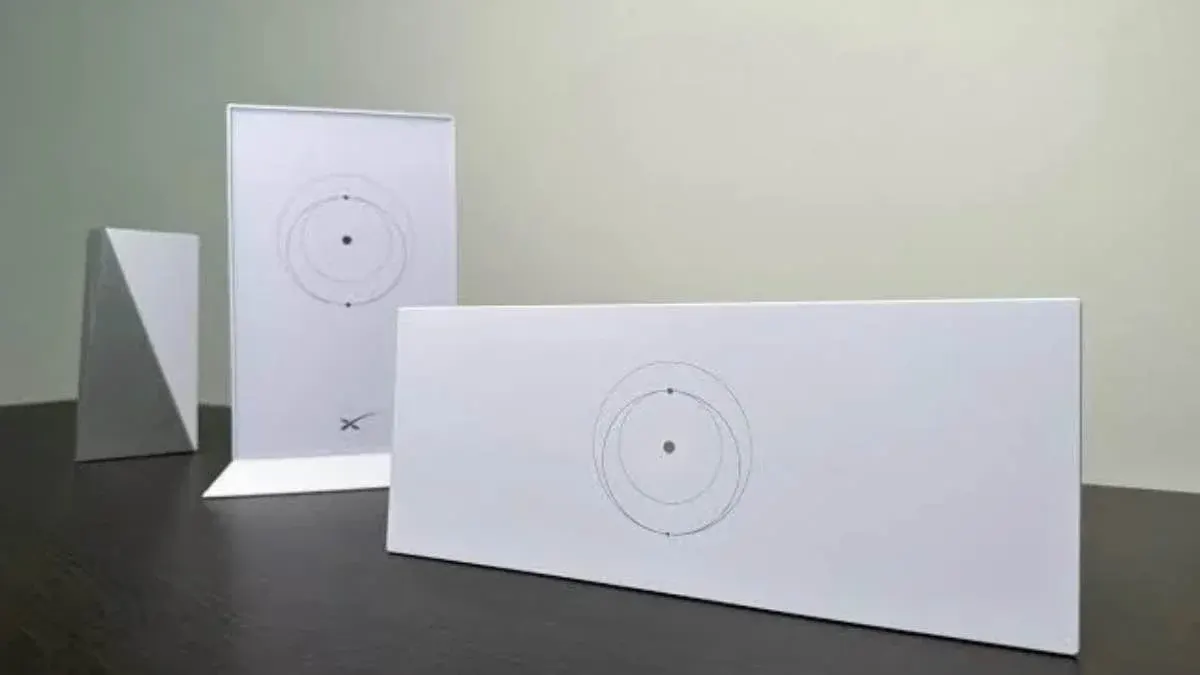
The Starlink app lets you split your Wi-Fi into two separate networks, one on 2.4GHz and one on 5GHz. If your phone or laptop supports 5GHz, forcing it onto that band can make the connection faster. It is not for everyone, though.
Most routers work on those two bands. The hardware that ships with Starlink does not support the newer 6GHz band, even when the router supports Wi-Fi 7. The 5GHz band is faster by nature: shorter waves allow higher potential speeds and offer more channels that don't overlap. Less overlap means less congestion and interference. Your real results still depend on the router, the distance and the devices you connect.
Splitting also helps low-power gadgets such as many smart LED bulbs, which only speak 2.4GHz. On a single network they compete with devices that could have used 5GHz, and get squeezed for no good reason.
How to split your Starlink Wi-Fi into 2.4GHz and 5GHz
- In the Starlink app, choose Add Network.
- Turn on Split Network.
- Name the two networks when the app asks. Put 2.4 and 5 in the names so you know which band each device is on.
Should you split your Starlink network?
There are three catches. First, range. Indoors, 2.4GHz usually reaches about 45 metres (150 feet), while 5GHz manages 15 to 25 metres (50 to 75 feet) and handles walls and obstacles worse. Lock a device to 5GHz and you may get a patchy signal, or none, in spots that used to work. With a single network, devices switch bands on their own.
Second, devices on one network may not talk to devices on the other. That doesn't matter if they only need the internet, but it can confuse smart homes where accessories need specific bands, so they stop working together or complex automations fail.
Third, you have to reconnect every device to the new networks, and on phones or tablets you may need to switch networks by hand when you walk into certain rooms. If you aren't having performance problems, leave the settings as they are.
Apps worth a look
SUMO: the number puzzleTap the right tiles, add them up, hit the target. Easy to learn, hard to master. Free, for all ages.
Dialo: learn languages by speakingTalk to an AI conversation partner; every sentence comes back corrected and explained in your language. 9 languages, A1 to C2.
ediviewer: read EDI files like documentsOpen EDIFACT and X12 messages, see every segment explained, convert to JSON/XML, export PDF and Excel. Runs locally, no upload.
giftdetect: the right gift in minutesPick who it is for, the occasion and their personality. The search engine reads product descriptions from local shops and ranks what fits. Free, no sign-up.
More from this day
See all →
Sarvam AI Dictate and 105B Update: What the Startup Is Building

Tawakkalna AI agent: Saudi Arabia plans a personal assistant for Feb 2027

Signal blocks Siri and Gemini from reading your private chats